
Before you start#
- An iPhone or Android phone, or any web browser at marucommunity.com.
- A Google, Apple or Kakao account, or an email address you can check.
Install the app, or use the web#
maru runs on iPhone, Android and in the browser, and your account works on all three. Get it from the App Store or Google Play, or open marucommunity.com on a computer.
Create your account#
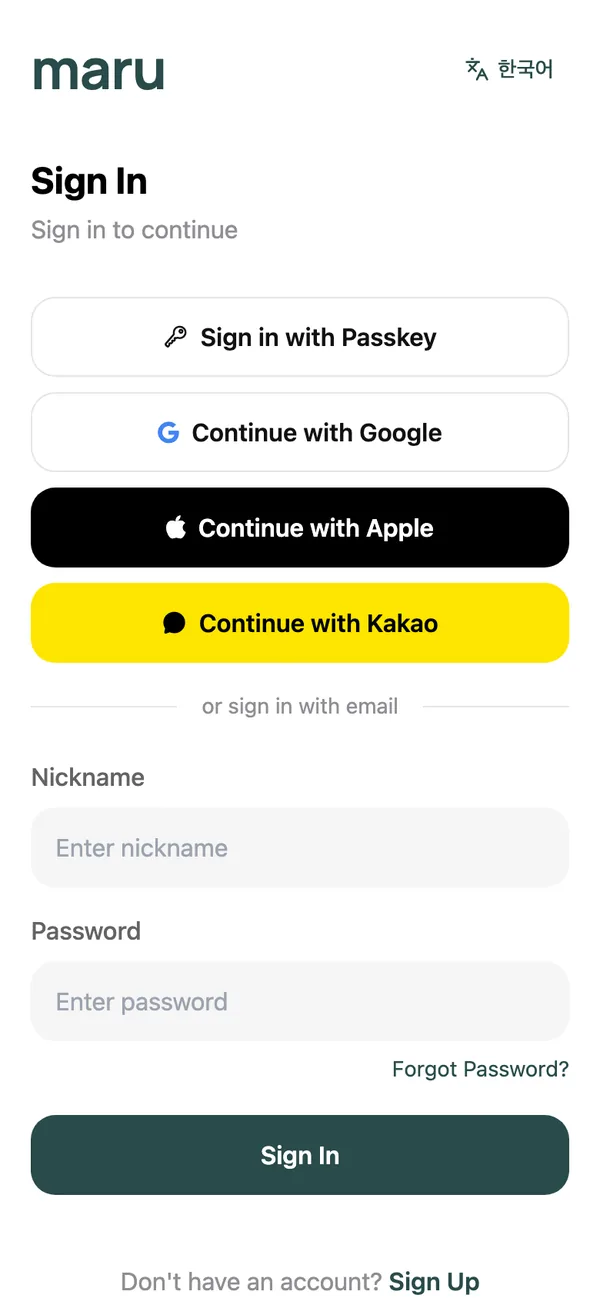
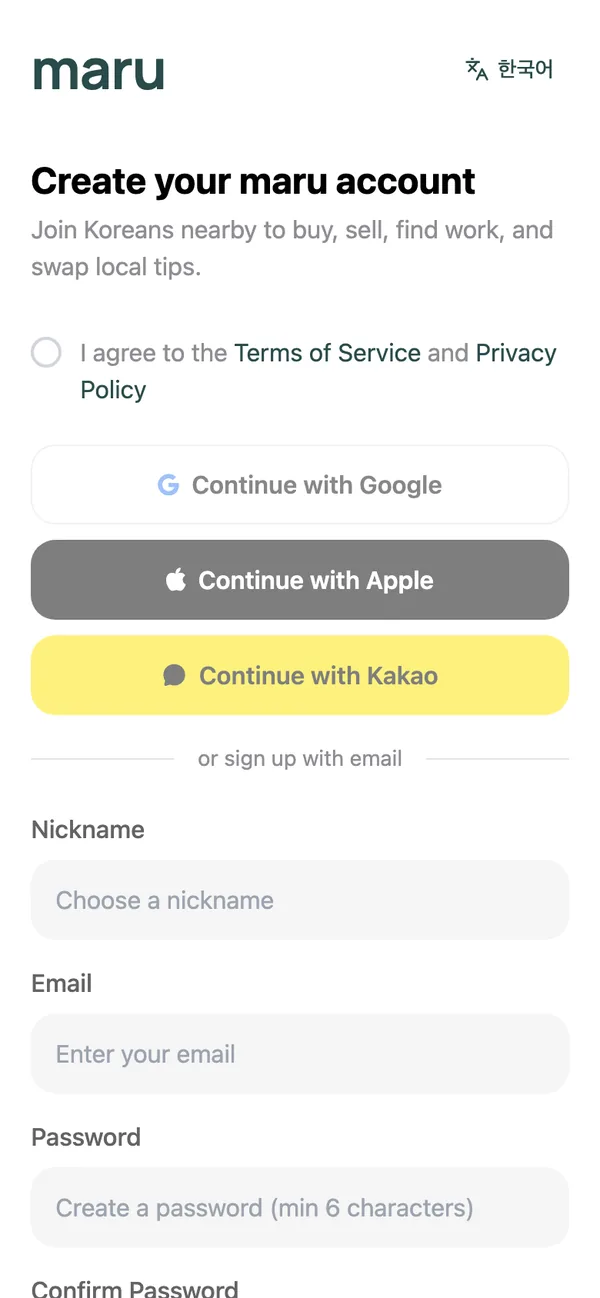
- 1
Open the app and tap Sign Up
On the sign-in screen, choose how you want to join. The quickest options are Create Account with Google, Create Account with Apple and Create Account with Kakao, which use an account you already have. - 2
Or sign up with email
Enter your Email, create a password of at least six characters and confirm it under Confirm Password. The bar under the password tells you how strong it is. Tick the box to accept the Terms and Privacy Policy. - 3
Pick a nickname
Your nickname is what other members see, and it is also what you sign in with if you use a password. 3–30 characters. Letters, numbers, dot, underscore, hyphen. - 4
Set up a passkey (optional)
After signing up, maru offers Set Up Passkey? so you can sign in next time with Face ID, a fingerprint or your phone’s PIN instead of a password. You can add one later from your profile under Passkeys.
Tell maru where you are#
The feeds and the “near you” notifications are built around places you save. Each saved place has a radius (20 km unless you change nothing), and you can save up to three, labelled Home, Work or Another area.
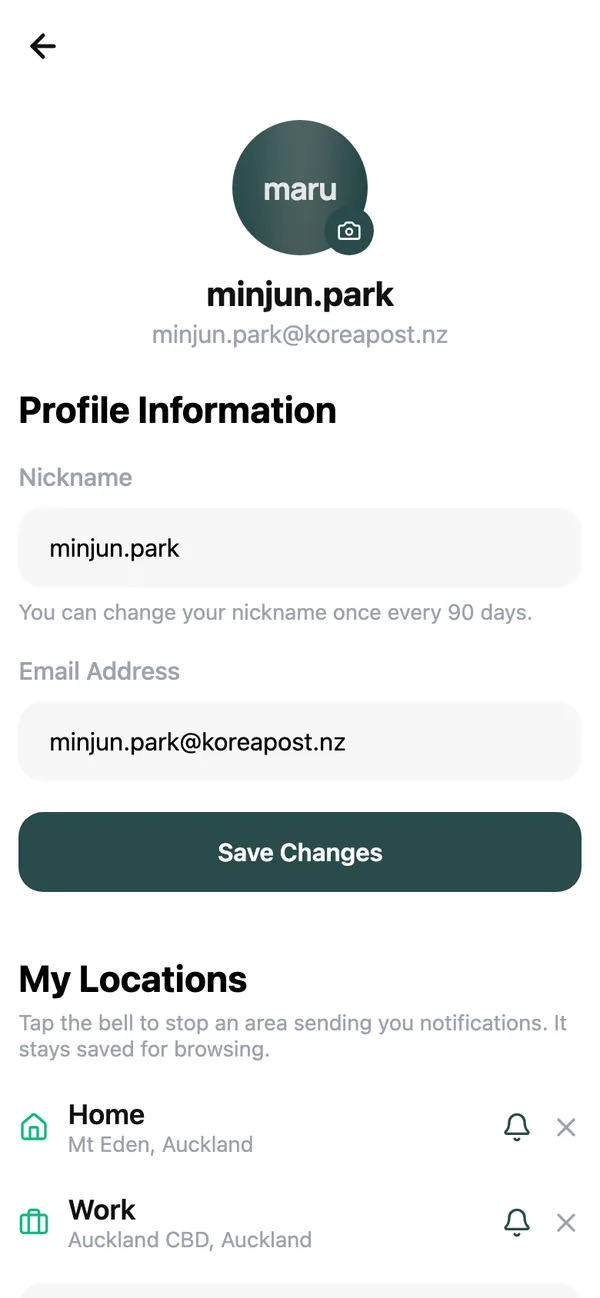
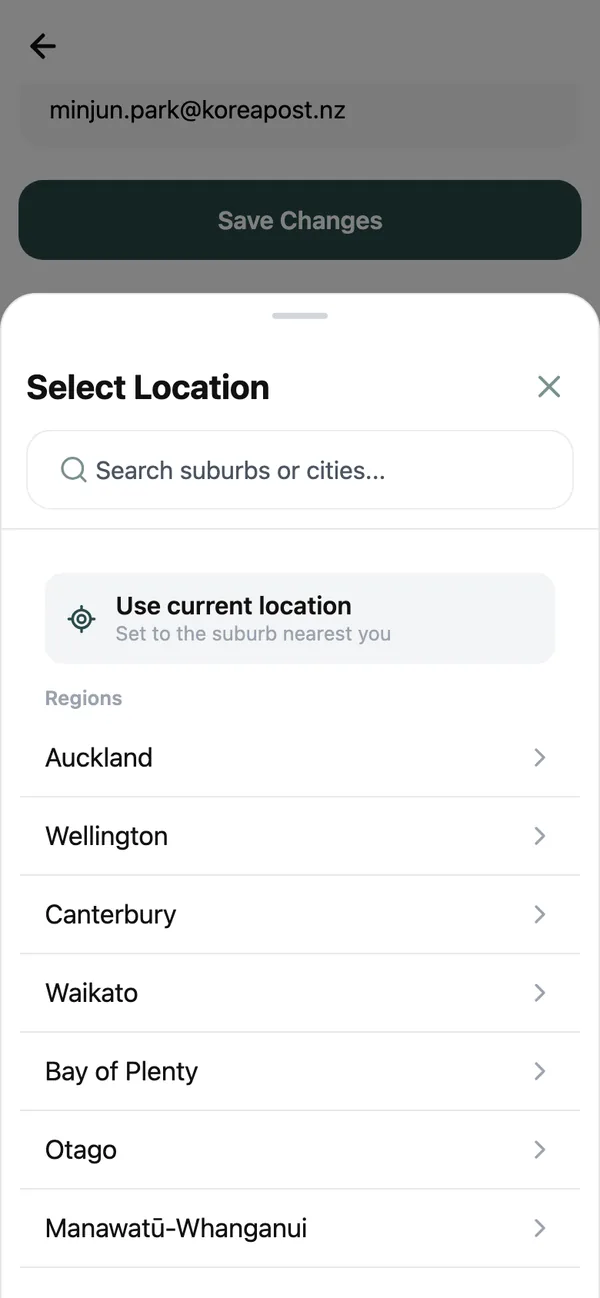
- 1
Open your profile
Tap your avatar in the top corner, then Your Profile. Scroll to My Locations. - 2
Tap Add Location
Search for a suburb or city, or tap Use current location to pick the suburb nearest you. Tap Apply. - 3
Give it a label
Choose Home, Work or Another area. The same picker is also behind the location chip on the Home tab under Manage locations.
More on how locations drive what you see and what you are told about is in the alerts guide.
Find your way around#
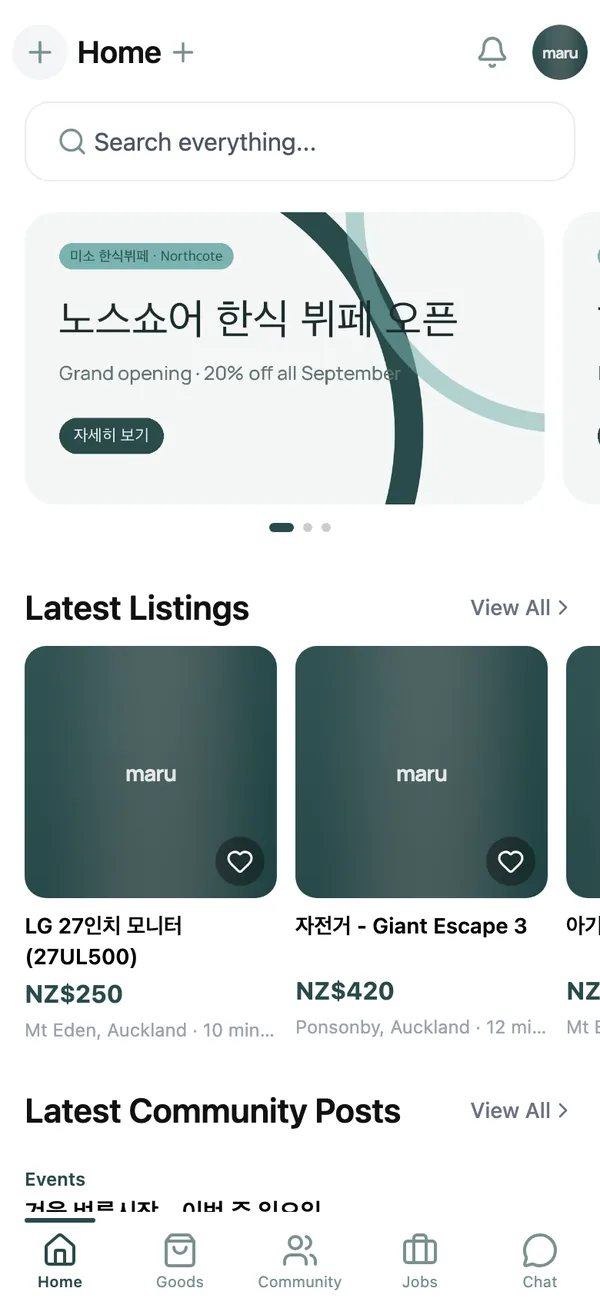
The bottom bar has five tabs:
- Home: the latest listings, community posts and jobs from your saved places, plus a search box for everything at once.
- Goods: the second-hand marketplace.
- Community: posts, questions, events and deals.
- Jobs: job listings from Korean businesses.
- Chat: your conversations. It appears once you are signed in.
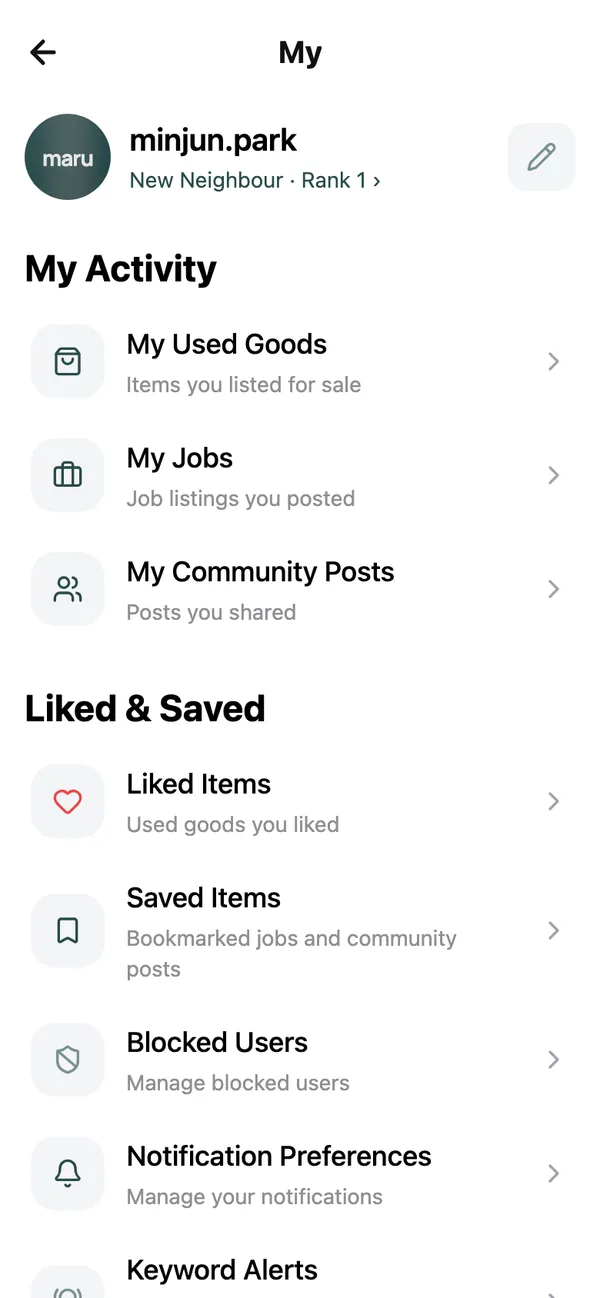
Your avatar in the top corner opens the account menu: Your Profile, Notifications, My Listings, Saved Items and the My page with every setting.
Choose your language#
The app follows your phone’s language on first launch. To change it, open the My page and tap Language; the choices are English and 한국어. This also sets the language that incoming chat messages are translated into. See the translation guide.
Common questions#
Do I sign in with my email or my nickname?#
With your nickname if you use a password. Google, Apple, Kakao and passkeys do not ask for either.
I forgot my password.#
There is no self-service reset yet. Email [email protected] from the address on your account and we will sort it out. If you added a passkey or a linked account, you can still sign in with those.
Can I use the same account on my phone and on the web?#
Yes. Everything is tied to the account, not the device.
Keep reading#
Still stuck? Email [email protected] and we will walk you through it.