
Before you start#
- A signed-in account.
- Up to five photos of the item, taken in daylight if you can.
Post a listing#
- 1
Tap the + button
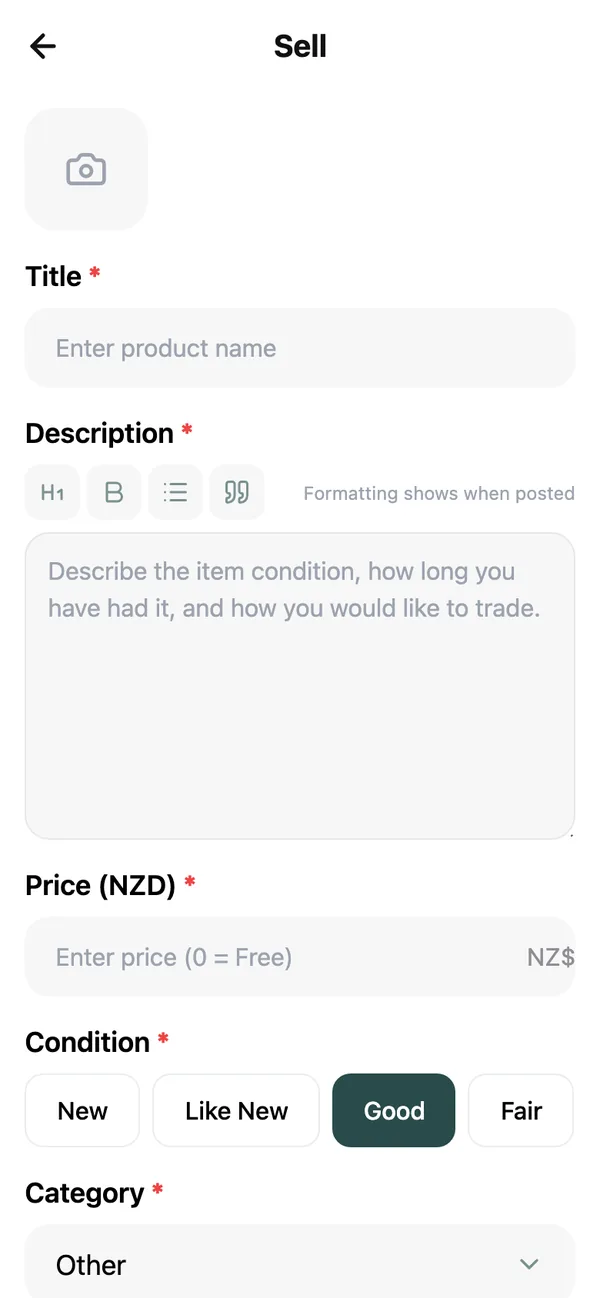
On the Goods tab, tap + in the top corner and choose List a used item. The form is called Sell. - 2
Add photos
Photos (max 5): at least one is required. The first photo is the one buyers see in the feed, so make it the clearest. Show any scratches or wear in the others. - 3
Title and description
Put the brand and model in the Title. In the Description, say how old it is, what condition it is in, what is included and how you would like to trade. Buyers ask fewer questions when the answers are already there. - 4
Price
Enter the amount under Price (NZD). Enter 0 to give it away; the listing is then marked Free and shows up under the Free category. - 5
Condition and category
Pick a Condition from New, Like New, Good, Fair or Poor, and the Category that fits. Optional Traits tags help buyers filter, for example delivery available. - 6
Where you will trade
Trade Location is the suburb buyers will see and is required. Under Other areas you can meet in you can Add an area you also pass through, such as near work; buyers searching there will see your listing too. - 7
Tap Post
Your listing is live straight away, and neighbours who have that suburb saved may be notified.
When a buyer messages you#
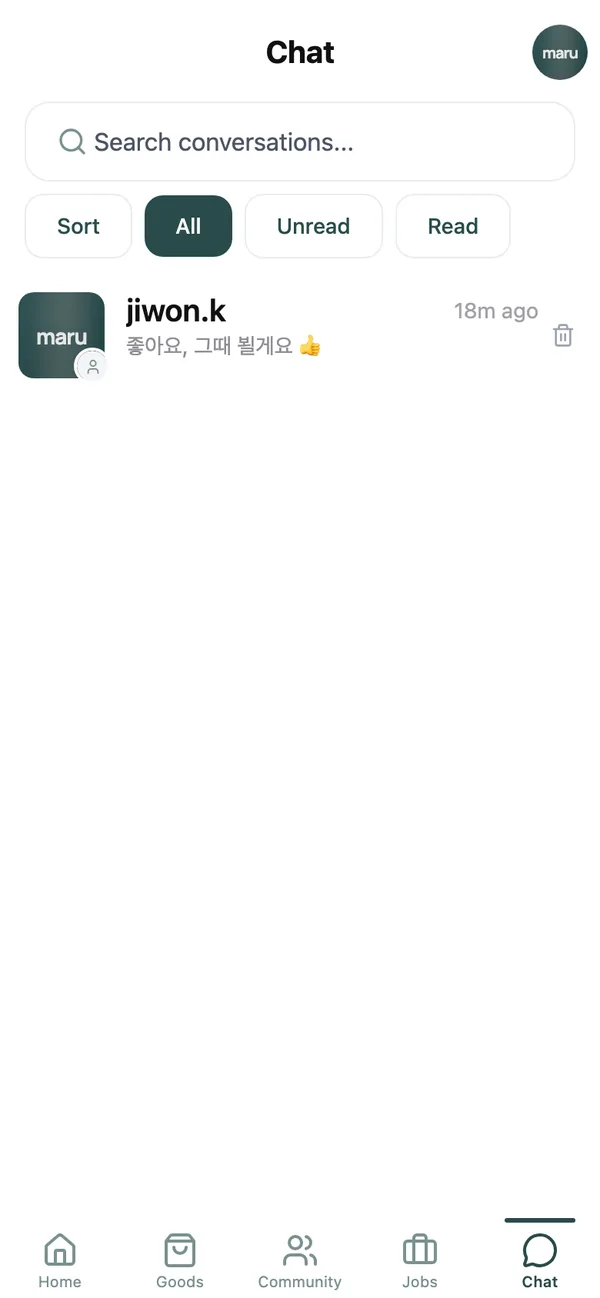
Enquiries arrive in the Chat tab. Reply as quickly as you can: buyers often message several sellers at once. You can send photos in the chat, and translation is built in if the buyer writes in the other language. See the chat guide.
Reserve it, mark it sold, or relist it#
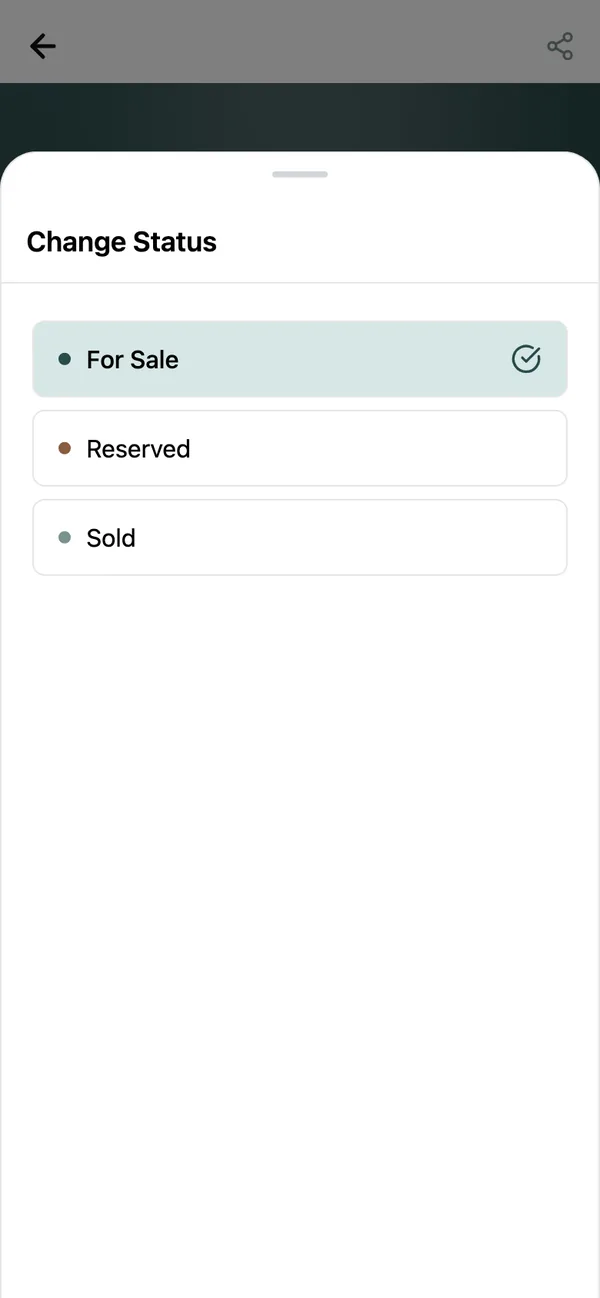
On your own listing, tap Change Status:
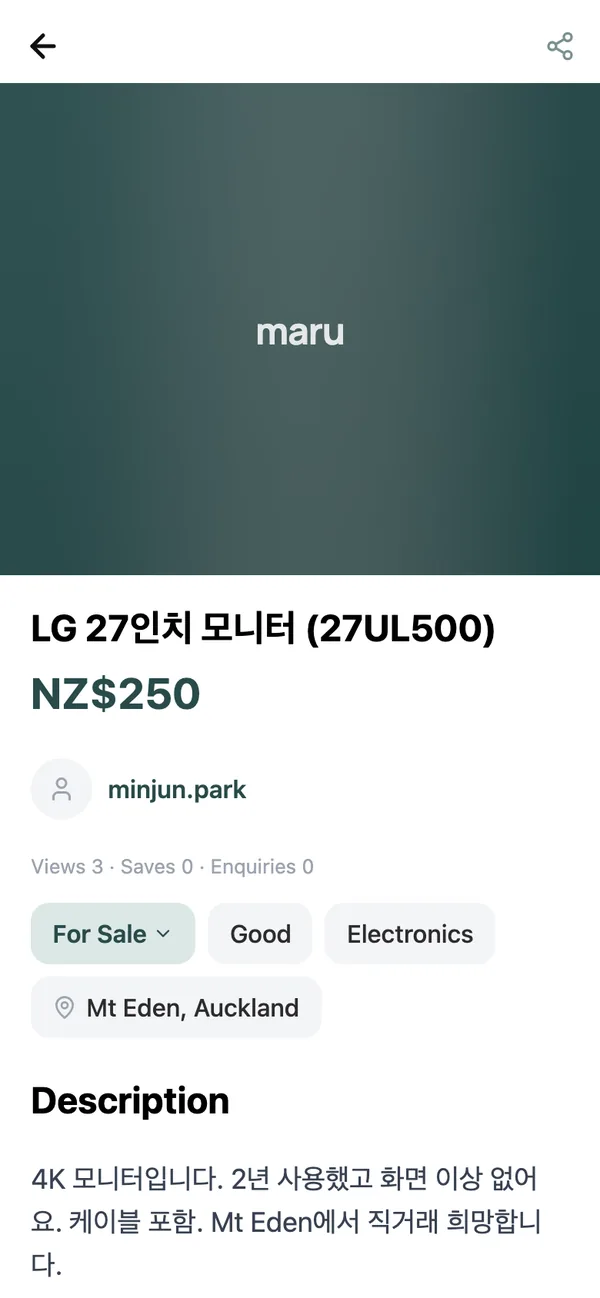
- 1
Reserve
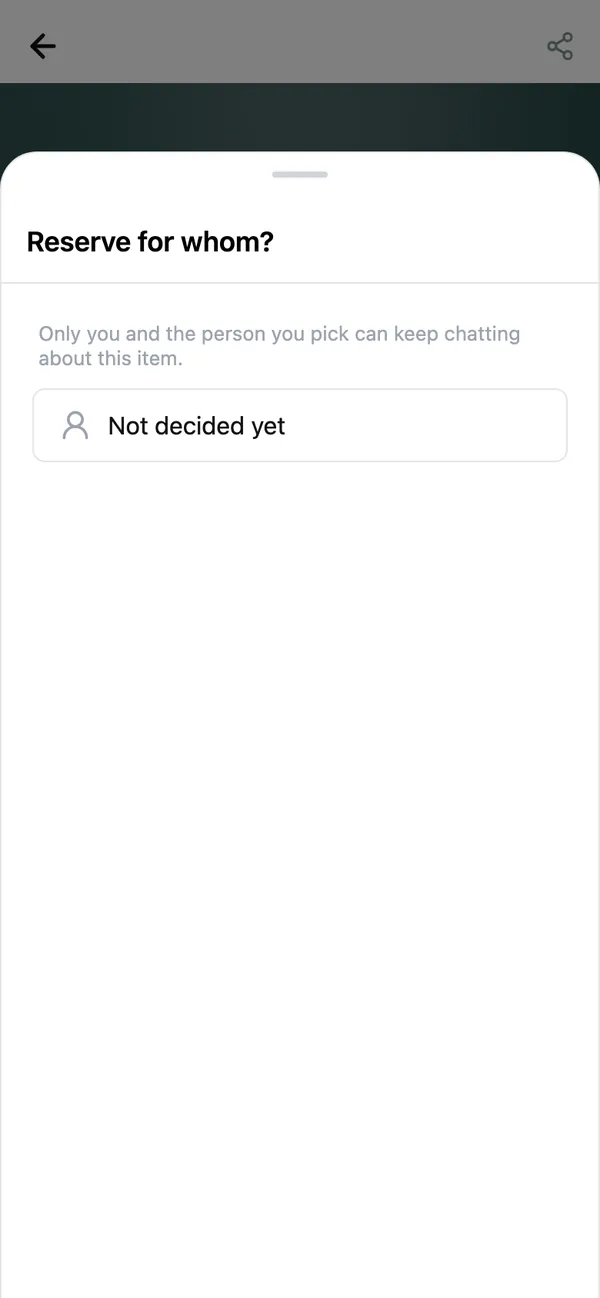
The listing shows Reserved. You are asked Reserve for whom?: pick the buyer from the people who have messaged you, or Not decided yet. Only you and the person you pick can keep chatting about this item. Other people can still see the listing but cannot start a new chat. - 2
Cancel Reservation
If the buyer does not turn up, cancel the reservation and the listing goes back to For Sale for everyone. - 3
Mark as Sold
Once the handover is done. Sold items are hidden from the feed by default and count towards your Maru Score. - 4
Relist
Puts a sold or reserved item back on the market.
Edit or delete#
Open the listing and tap Edit to change anything, including the price, or Delete to remove it. All of your listings are together under My Used Goods on the My page, each with the same edit, status and delete controls.
Common questions#
How many photos can I add?#
Five. Choose them well: the first one is the thumbnail.
Can I list a car?#
Yes, under the Vehicles category. Include the year, kilometres, WOF and registration status in the description.
Why can I not see my listing in the feed?#
Check that Hide sold is not hiding it because it is marked sold, and that the feed’s location includes the suburb you listed it in.
What may I not sell?#
Anything illegal, counterfeit, or that needs a licence to sell. Listings are moderated and reports are reviewed within 24 hours.
Keep reading#
Still stuck? Email [email protected] and we will walk you through it.